Fixing Python ModuleNotFoundError in VS Code and Jupyter
Fix Python ModuleNotFoundError by checking the interpreter, pip, virtual environment, and Jupyter kernel. Diagnose the cause before reinstalling packages.
Checked on October 2, 2026. Examples use Python 3. Installation commands require internet access; the diagnostic examples do not install or remove packages.
A package installed successfully, but import pandas still raises ModuleNotFoundError. Before reinstalling Python, check whether your program and pip use the same interpreter. A computer can have several Python installations, each with a different set of packages. Notebooks add another layer: the kernel running your cells may differ from Python in the terminal.
Short answer: run import sys; print(sys.executable) where the error occurs. Use that interpreter to inspect and install packages through -m pip. In VS Code, select the project interpreter; for notebooks, select the matching kernel. If the package is already available, investigate the import name and project structure.
What does ModuleNotFoundError mean?
The Python import system documentation describes how Python searches for modules using its import machinery and available search locations. ModuleNotFoundError means a required module could not be found. The message alone does not distinguish a missing installation from the wrong environment or an undiscoverable project file.
Read the module name on the final line of the traceback. Your program might execute import package_a, while the final error names package_b. The first package may have been found and then failed while importing a dependency. Reinstalling the wrong package repeats work without testing the original explanation.
Also distinguish an import failure from an editor warning. An underline can come from static analysis. If the program runs but the editor complains, the code analyzer may use a different configuration. For an actual execution failure, use the traceback and the identity of the failing process as your main evidence.
Step 1: identify the Python process actually running
Paste this into the file or notebook cell that encounters the error:
import sys
from pathlib import Path

print("Interpreter:", sys.executable)
print("Version:", sys.version.split()[0])
print("Working directory:", Path.cwd())
The executable path matters. In a hypothetical Windows project, the terminal might use C:\project\.venv\Scripts\python.exe while the notebook uses global Python. If pandas is installed only in .venv, global Python does not automatically receive it. Record both paths and compare them carefully.
The working directory helps when the missing module is your own file, such as helpers.py. Review diagnostic output before sharing it: paths can contain personal information. Keep the relevant folder structure while replacing private directory or account names.
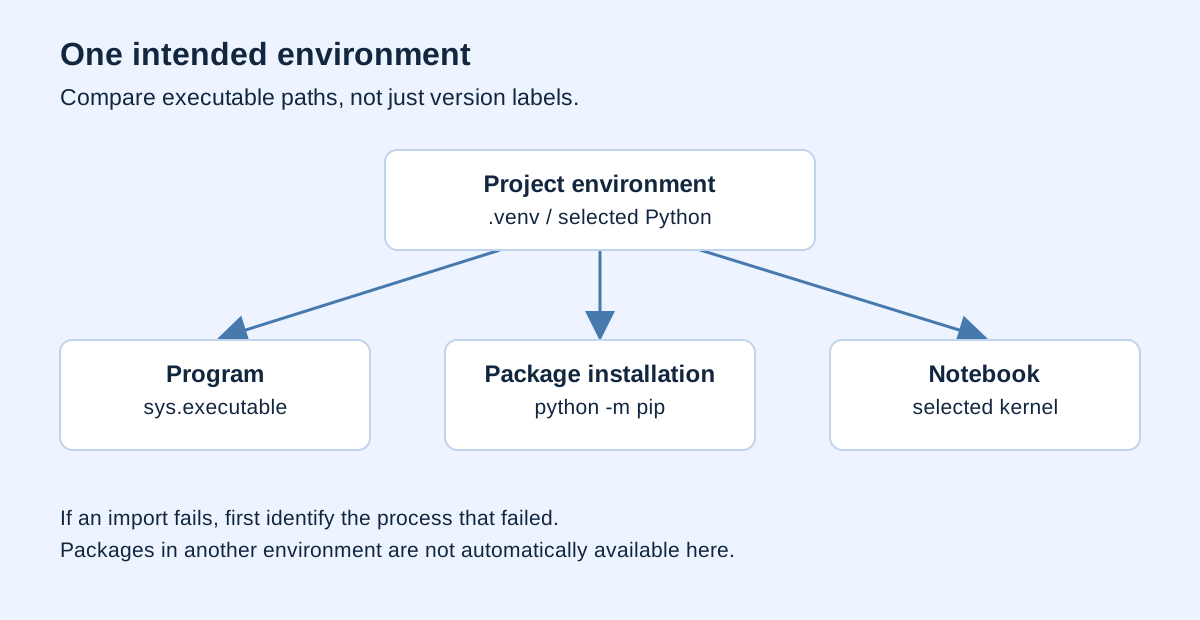
Step 2: connect pip to that interpreter
The pip user guide explains that python -m pip runs pip with the interpreter named by python. This makes the relationship clearer than relying on whichever pip command the shell finds first.
python -m pip --version
python -m pip show pandas
python -m pip install pandas
python -c "import pandas; print(pandas.__version__)"
These commands serve different purposes: identify pip, inspect the package, install it if needed, and test the import. Requirement already satisfied does not establish that every Python installation on your computer has the package. It applies to the environment handled by that installation command.
If terminal python does not match the executable from Step 1, call the known executable directly. For a project virtual environment in PowerShell:
& .\.venv\Scripts\python.exe -m pip show pandas
& .\.venv\Scripts\python.exe -m pip install pandas
& .\.venv\Scripts\python.exe -c "import pandas; print(pandas.__version__)"
On macOS or Linux, the equivalent is ./.venv/bin/python -m pip show pandas. These paths illustrate common layouts; adapt them to your environment. Calling the executable directly also works when environment activation fails. You do not need to change shell security policies just to invoke an existing Python executable.
Step 3: match the VS Code interpreter
The VS Code environment documentation provides Python: Select Interpreter. Open the Command Palette, choose that command, and select your project environment. The Python extension uses it for execution, debugging, and language support unless a specific configuration overrides it.
After selecting it, run sys.executable again. Similar labels are insufficient evidence. Two environments can show the same Python version while residing in different locations. The path printed by the running program identifies the executable actually used.
Check how your Run button works, too. Another extension or a custom task may invoke its own command. If execution uses a debug configuration, inspect whether it selects a different Python. Compare a simple run through the VS Code Python extension with the execution method that fails.
Step 4: select the Jupyter kernel separately
A notebook is not simply a terminal with a different appearance. A kernel executes its cells and retains variables and state during the session. The VS Code notebook guide shows the kernel picker at the upper right of the notebook editor.
In an IPython notebook, the %pip magic invokes the package manager within the current kernel:
%pip show pandas
%pip install pandas
These lines belong in IPython cells, not ordinary .py files. Restart the kernel when needed after installation, then run cells from the beginning. Restarting clears session variables, so save your work and avoid depending on objects created before the package change.
If the intended environment is unavailable as a kernel, check its ipykernel requirements. Target the environment that will actually execute the notebook. A missing kernel label is not, by itself, a reason to install another full Python distribution; inspect the picker and extension documentation first.
Symptoms and first checks
| Symptom | Explanation to test | First check |
|---|---|---|
| Terminal succeeds, notebook fails | Different kernel | Compare sys.executable |
| pip reports installation, import fails | Different pip and program environments | Invoke pip through the program executable |
| Only the editor warns | Analyzer uses another environment | Select the interpreter and test execution |
| Your own module is missing | Project layout or working location | Check filenames, working directory, and launch method |
| Traceback names another module | A dependency is missing | Read the full traceback |
| No compatible distribution exists | Python/platform or package-index mismatch | Check installation errors and official support |
This table is not an automatic diagnosis. Each row suggests an explanation you can confirm or reject. A notebook using the same executable can still fail because of project search paths. Environment checks narrow the possibilities rather than settle every case.
Installation names can differ from import names
The Python Packaging User Guide distinguishes distribution packages from import packages. The installation name need not match the module name in code. For example, scikit-learn is imported as sklearn, and Pillow provides PIL.
Do not immediately install whatever package has the same spelling as the missing module. Consult the official project's installation instructions. A similarly named package may be unrelated, making the installation unhelpful and the investigation harder.
For standard-library modules such as json, csv, or math, installing through pip is generally the wrong first step. Check the executable, conflicting local filenames, and whether the traceback actually identifies another module as the failure.
When the missing module belongs to your project
Suppose a project folder contains main.py and helpers.py. Use a consistent project layout and launch method. If the structure is a package, running it as a module from the project root may be more appropriate than launching an inner file independently.
Avoid adding machine-specific absolute paths to sys.path as your first permanent fix. That can make the program work on only one laptop. A proper package layout and project installation are easier to explain and reproduce when sharing the project.
Local names can also obscure imports. A file named pandas.py or json.py, or a folder imitating a package name, may be discovered before the intended package. The resulting error may instead involve circular imports or missing attributes. After renaming it, start a fresh process so the old module does not remain in memory.
Inspect discovery without guessing
This example checks whether the import system recognizes a module, using the documented importlib interface.
import importlib.util
import sys

print(sys.executable)
spec = importlib.util.find_spec("pandas")
print("Found:", spec is not None)
if spec is not None:
    print("Location:", spec.origin)
False means that interpreter did not discover the module. For True, inspect whether the reported location is the expected file. Discovery does not guarantee a complete import succeeds: dependencies or package initialization can still fail.
Record results before and after each fix. A useful note includes the executable, module name, action, and import result. It identifies which step changed the outcome rather than assuming a sequence of installations happened to work.
Habits that prevent recurring failures
Use separate environments for projects with different dependencies, following the Python virtual-environment tutorial. Record required dependencies and the Python version, and test the project in a fresh environment before handing it over.
Before sharing a notebook, restart its kernel and run all cells in order. This exposes dependencies on hidden session state. Include short setup instructions covering the environment, packages, and launch method. An environment folder is not a substitute for reproducible installation instructions.
Once imports work, continue with the Python and data learning path or the guide to reading CSV files with Python.
Frequently asked questions
Should I reinstall Python?
Diagnose the environment first. Reinstallation can add another interpreter without resolving the original mismatch. Repair the installation when evidence shows it is damaged or incompatible with the required package.
Why did activating .venv not fix the notebook?
Activation changes commands in that shell. An existing notebook may still use its old kernel. Select the intended kernel and verify sys.executable inside a cell.
Can %pip run in a .py file?
It is not ordinary Python syntax. %pip is an IPython magic. In a terminal, use the correct executable with -m pip.
What should I share when asking for help?
Provide a redacted traceback, module name, Python version, environment identity, and launch method. Exclude API keys, tokens, and sensitive paths.
Verification and sources
Start with the failing process: identify its interpreter, connect pip to it, align the editor and kernel, then inspect package names and project structure. Test the import through the same execution path afterward. This produces a fix supported by evidence and a record you can reuse.
Python, pip, Microsoft, IPython, and PyPA documentation is linked beside the relevant explanations; accessed October 2, 2026. Paths and scenarios are Noetrion teaching examples. No single procedure is claimed to solve every import error.